Summary Details
Customize the information shown in your submissions inbox so each response card is easier to scan.
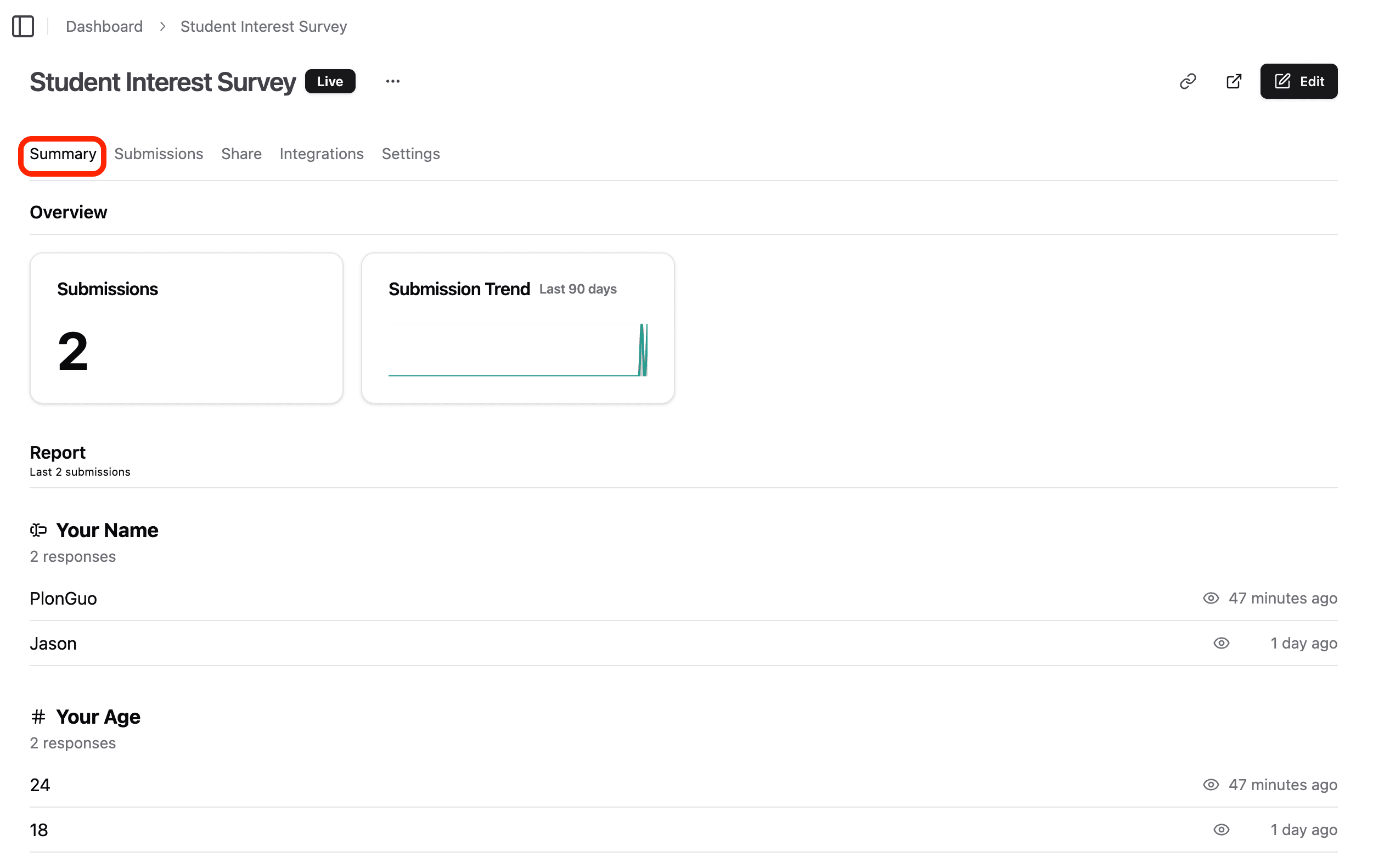
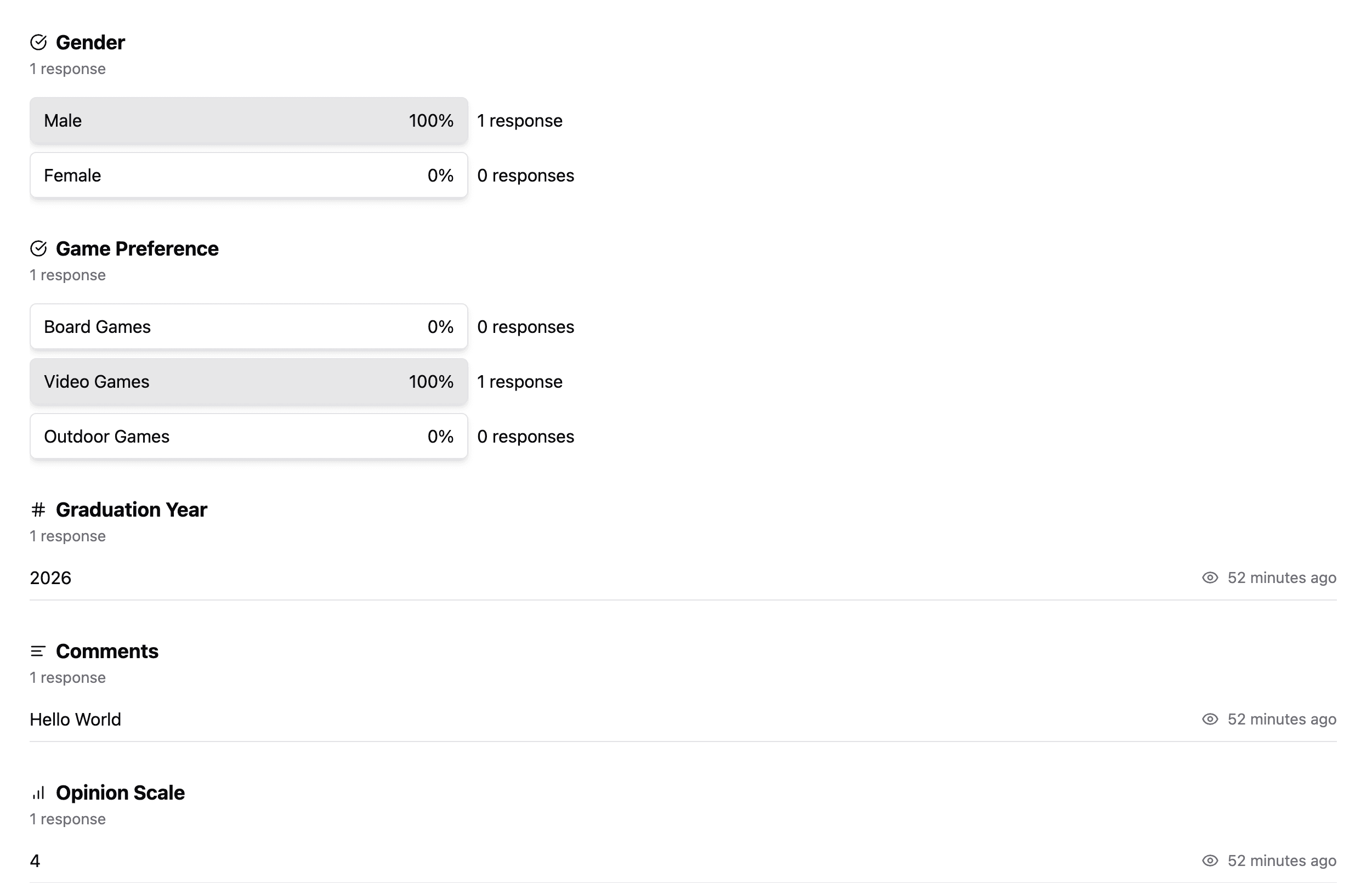
Summary details are part of the submissions inbox. They help teams review responses quickly without opening every submission.
What summary details control
Summary details control how submission cards are displayed in the inbox view.
You can configure:
- Which fields appear on each card.
- Field groups for related answers.
- How many submissions load at a time.
- Refresh behavior for new submissions.
- Conditional styling rules for important responses.
When to customize summary details
Customize summary details when your team reviews a lot of submissions and needs the important fields up front.
Good examples:
- Lead qualification forms
- Job applications
- Support intake
- Order requests
- Event registrations
- Internal approvals
For simple forms, the default inbox layout is usually enough.
Configure the inbox
- Open your form results.
- Switch to the Inbox view.
- Open inbox settings.
- Choose fields or field groups to show on cards.
- Adjust page size or refresh behavior if needed.
- Save the settings.
Use field groups
Field groups make related details easier to scan.
For example:
- Contact: name, email, phone
- Company: company name, website, role
- Request: plan, budget, timeline
Use groups when the same set of fields should stay together on every card.
Use conditional styling
Conditional styling can highlight submissions that need attention.
Examples:
- Mark enterprise leads when budget is above a threshold.
- Highlight urgent support requests.
- Flag submissions from a specific plan or region.
Keep styling rules rare. If everything is highlighted, nothing is highlighted.
Testing checklist
- Save the inbox settings.
- Review several real or test submissions.
- Confirm the most useful fields are visible without opening the card.
- Check that grouped fields are readable.
- Test conditional styling with matching and non-matching submissions.
Troubleshooting
A field does not appear
Check that the field still exists in the form and is included in the inbox settings.
A style rule does not apply
Confirm the rule uses the correct field and expected value.
The inbox feels cluttered
Show fewer fields and group related details. The inbox should be scannable, not exhaustive.