Conditional Logic
Create dynamic, personalized form experiences by showing different content based on respondent answers.
What you can do with conditional logic:
- ✅ Route respondents to different pages based on their answers
- ✅ Create branching paths for quizzes, surveys, and assessments
- ✅ Skip irrelevant sections automatically
- ✅ Build complex multi-path forms without multiple separate forms
What is Conditional Logic?
Conditional logic lets you create smart forms that adapt to each respondent’s answers. Instead of showing everyone the same linear path, you can direct people to different pages or sections based on how they respond.
Common Use Cases
Quizzes & Assessments Route quiz-takers to different result pages based on their score or answers.
Customer Feedback If someone rates their experience poorly, direct them to a detailed feedback page. If they rate it highly, skip to a simple thank-you page.
Lead Qualification Send qualified leads to a detailed intake form, while directing others to a waiting list or alternative path.
Conditional Surveys Only show follow-up questions relevant to the respondent’s previous answers.
How to Add Conditional Logic
Step 1: Navigate to a Form Page
Open your form in the builder and navigate to the page where you want to add conditional logic.
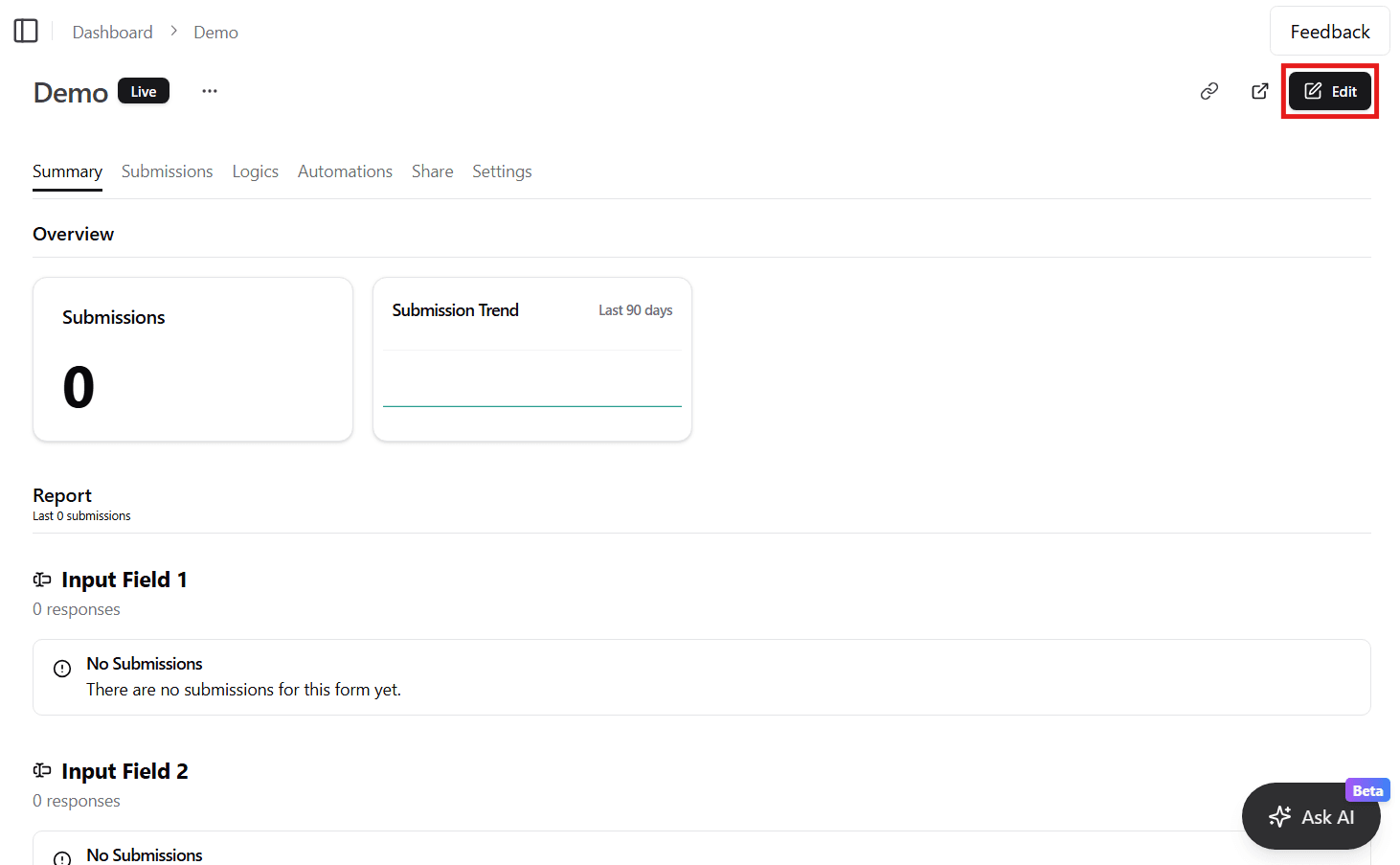
Step 2: Create Your First Condition
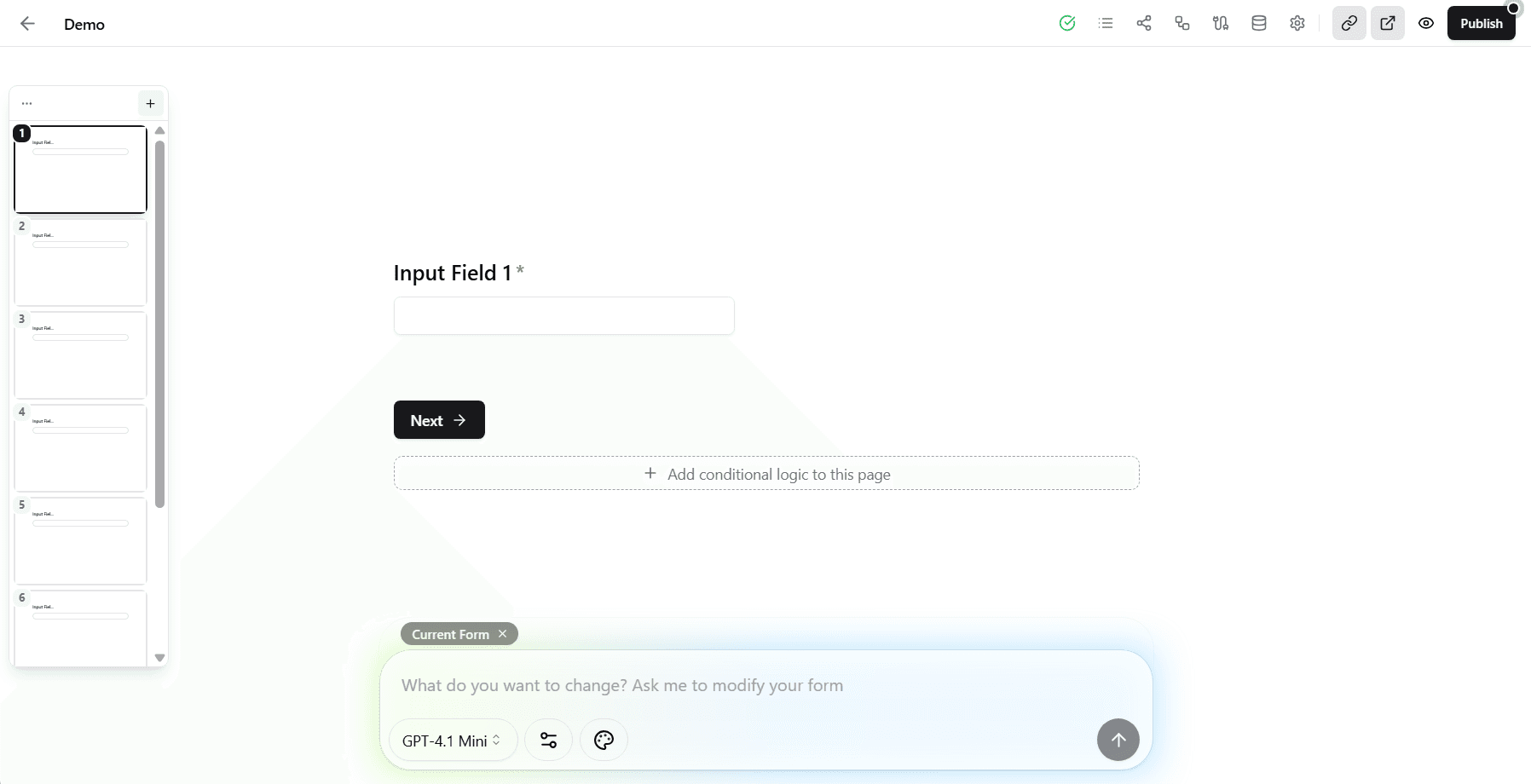
To add conditional logic, look for the Add conditional logic to this page button at the bottom of the page, right below the “Next/Submit” button. This button only appears when you hover your mouse over the area. Click it to open the condition settings.
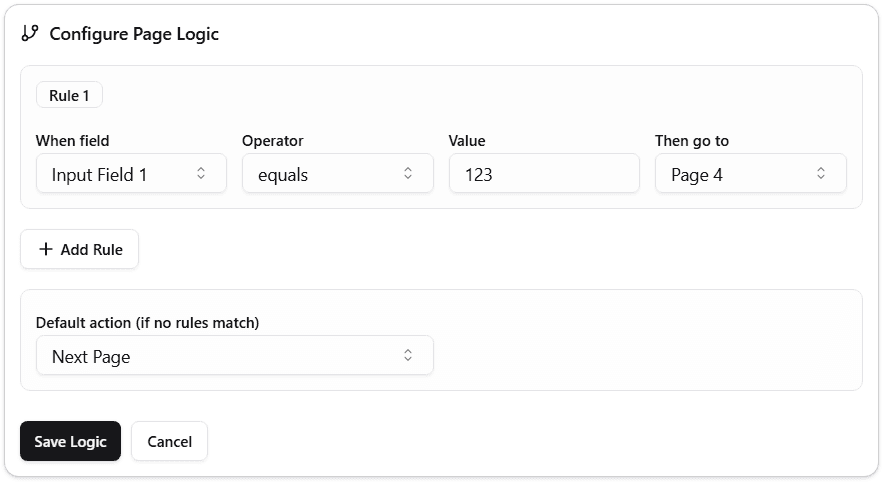
Configure your condition with the following settings:
- Field - Select which field’s answer to check
- Operator - Choose how to compare (equals, not equals, or contains)
- Value - Enter the value to compare against
- Go to - Select the destination page or choose to end the form
- Default Action - Set what happens when the condition doesn’t match (typically continues to the next page)
Available Operators
Choose the operator that matches your condition type:
| Operator | Description | Example |
|---|---|---|
| Equals | Exact match | Rating equals “Satisfied” |
| Not Equals | Does not match | Status not equals “Pending” |
| Contains | Text or array includes value | Answer contains “Yes” |
Visualizing Your Logic Flow

See your entire form’s conditional logic in a visual flowchart:
- Click the Logic Flow tab in the form builder
- View your pages and conditional paths as a connected diagram
- Click any page node to navigate to it in the editor
Visual Elements:
- Solid lines - Standard page progression
- Dashed lines - Conditional navigation paths
- Dotted lines - Default fallback paths
Troubleshooting
Condition Not Working?
Check the field name
- Ensure you’re referencing the correct field
- Field names are case-sensitive
Verify the operator
- Use “equals” for exact text matches
- Use “contains” for partial matches
- Use “not equals” to exclude specific values
Test with preview
- Use form preview to test your conditions
- Fill out the form as a respondent would
- Verify each path works correctly
Logic Not Triggering?
Confirm logic placement
- Logic must be on the page with the trigger question
- Logic evaluates when the “Next” button is clicked
Check condition order
- Remember: First matching condition wins
- Reorder conditions if needed
Review data types
- Comparing numbers with text won’t work
- Ensure your values match the field’s data type