Email Notifications
Send emails when someone submits your form.
Makeform supports self email notifications for form owners and respondent email notifications when your form has an email field.
Notification types
Makeform has two email notification flows:
- Self email notifications send the response to the form owner or team.
- Respondent email notifications send a confirmation email to the person who submitted the form.
Use self emails when your team needs to react to new submissions.
Use respondent emails when the submitter should receive a receipt, confirmation, or next-step message.
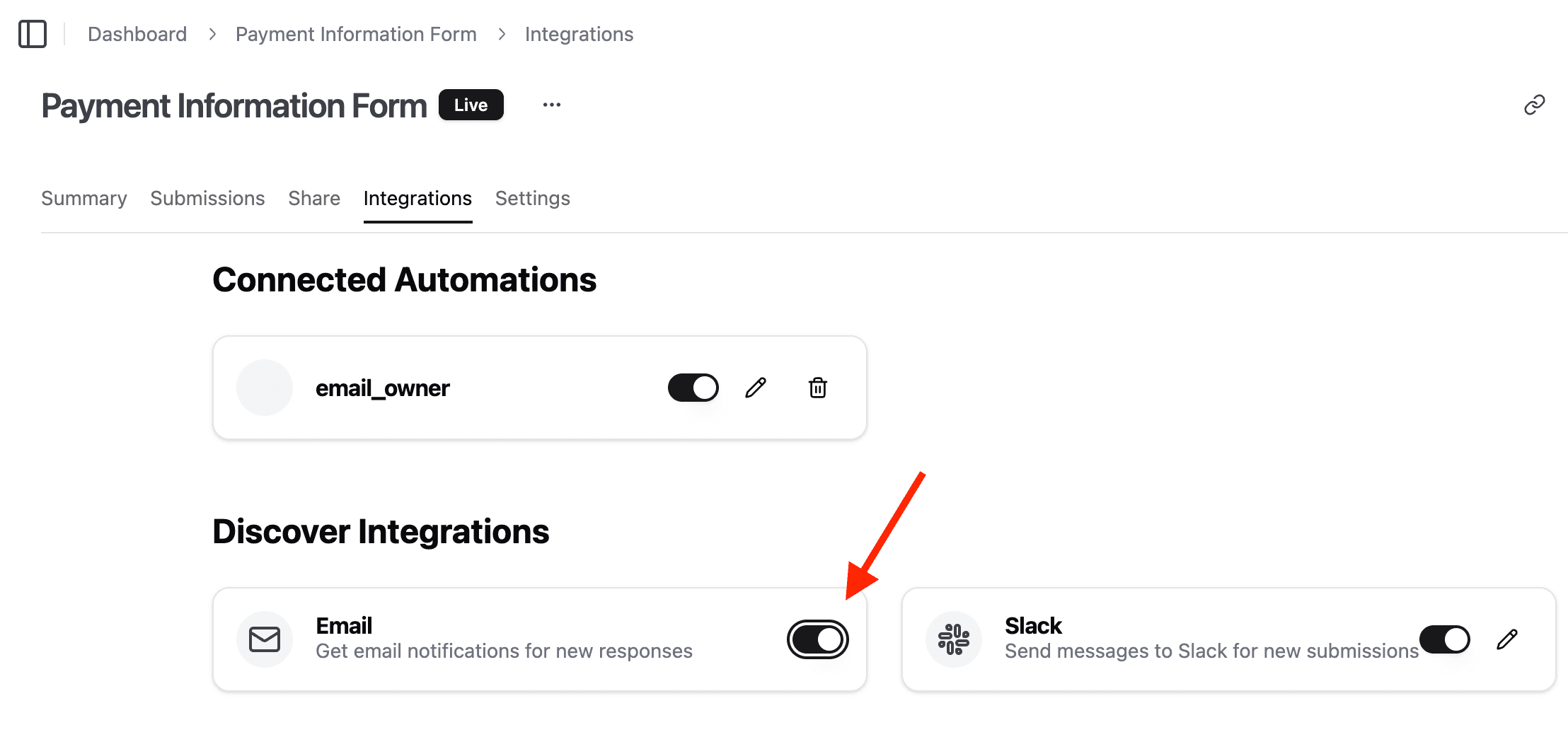
Enable self email notifications
- Open your form.
- Go to the Settings or Integrations area.
- Find Form email notifications.
- Turn on self email notifications.
- Save or publish the form.
Enable respondent email notifications
Respondent emails need an email field so Makeform knows where to send the message.
- Add an Email Input field to your form.
- Open email notification settings.
- Turn on respondent email notifications.
- Choose the email field.
- Customize the message if needed.
- Save or publish the form.
Customize the email
Email templates can include form and answer variables.
Useful variables include:
{{formName}}{{submittedDate}}{{submittedTime}}- Field answer variables from your form
Use custom copy when the email needs to include next steps, support instructions, or a receipt-style confirmation.
PDF attachments
Respondent emails can include submission data and may include an optional PDF attachment when configured.
Use this for applications, intake records, confirmations, and forms where the respondent needs a copy of what they submitted.
Testing checklist
- Submit a test response.
- Confirm the owner receives the self email.
- Confirm the respondent receives the confirmation email.
- Check spam or promotions folders.
- Verify variables render correctly.
- Keep email copy short and clear.
Troubleshooting
Respondent emails cannot be enabled
Add an email field to the form first.
The email goes to the wrong address
Check which email field is selected for respondent notifications.
A variable is blank
Confirm the field exists and the respondent answered it.