Long Text Input
Use a Long Text field when respondents may need more than one line for their answer, such as feedback, explanations, notes, or descriptions.
📌 How It Looks in the Form Builder
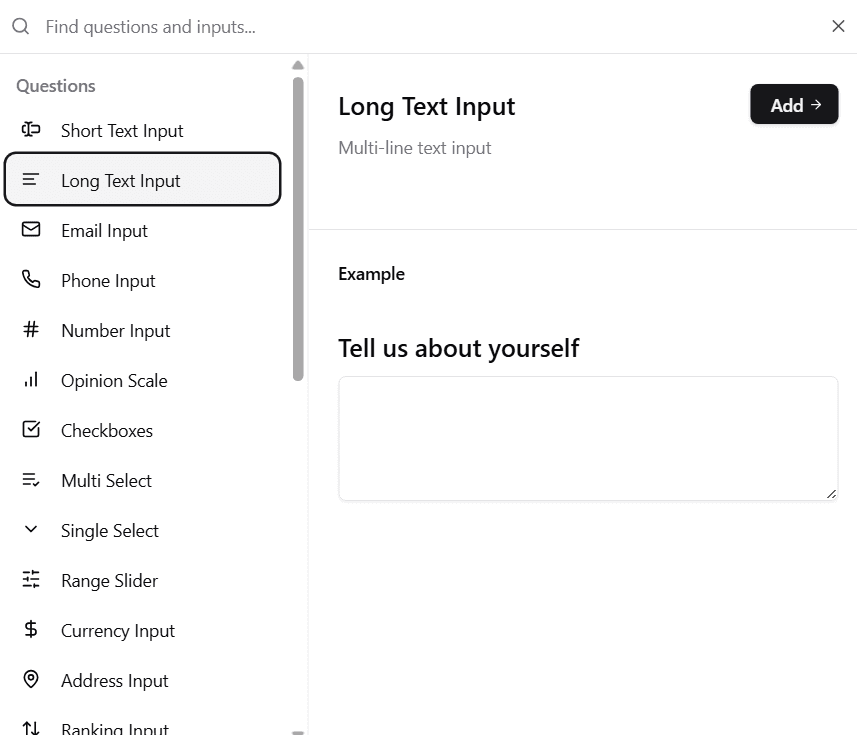
🖋 How It Appears in the Form

⚙️ Long Text Input Configuration
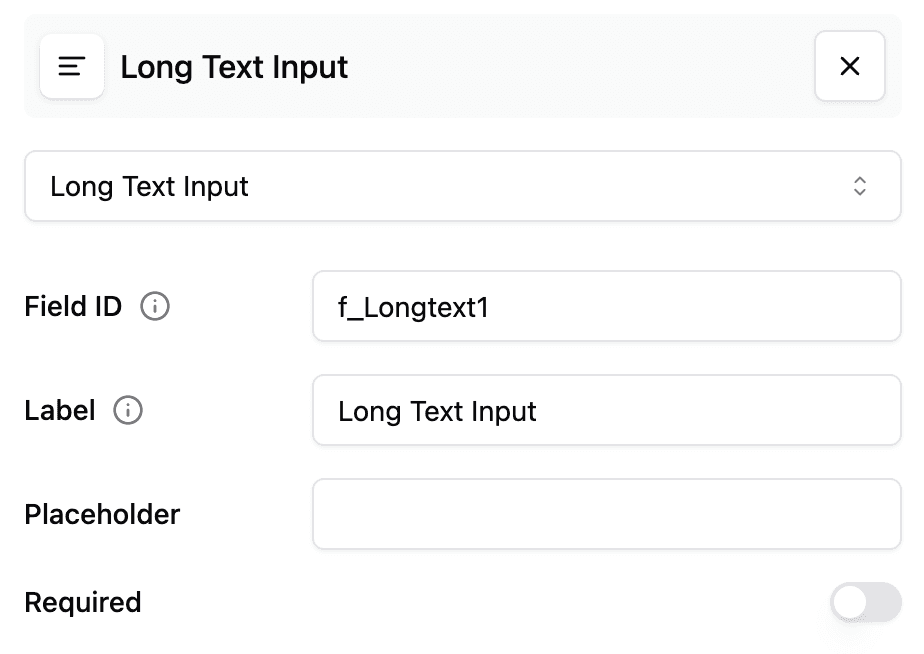
Set the initial height
You can choose how tall a Long Text field is before a respondent starts typing:
- Select the Long Text field in the Builder.
- Find Initial height in the field settings.
- Enter a value from 1 to 10 lines.
- Preview the form, then publish it when you are ready.
A one-line Long Text field starts as compact as a Short Text field while still allowing a multi-line answer. As the respondent types, the field automatically grows to fit longer content.
The setting changes only the field’s starting height. It does not limit the answer length or change submitted data.
Existing Long Text fields without an Initial height value keep their previous default height. After changing this setting on a published form, publish the form again for the new height to appear on the public form and existing embeds.