Answer Piping
Use answer piping to insert a respondent’s previous answer into later questions, descriptions, text blocks, or ending pages.
Answer piping makes forms feel personal without creating separate forms or writing custom code.
What answer piping does
Answer piping takes a value from an earlier field and places it into later copy. Makeform can pipe answers into question titles and text content, so the same form can react to what the respondent already entered.
For example:
- Ask for a first name, then write
Thanks {{first_name}}, what is your main goal? - Ask for a company name, then write
What should we know about {{company}}? - Ask for a selected package, then write
You selected {{package}}. Choose your add-ons. - Ask for a quantity, then write
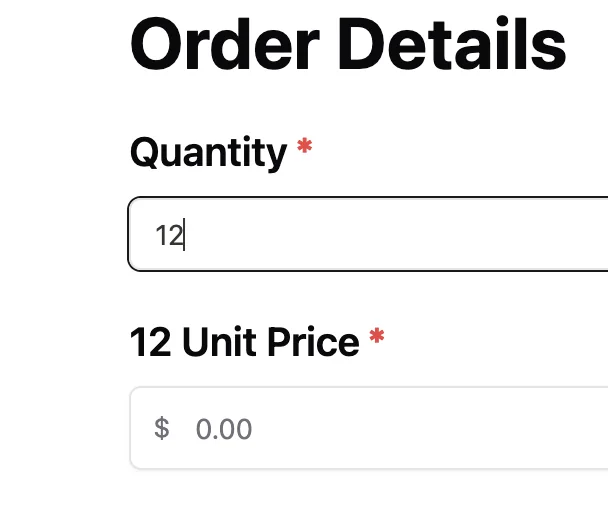
{{quantity}} Unit Price
Create answer piping with AI
You can ask Makeform AI to add answer piping for you. For example:
Use the quantity answer in the Unit Price question title.Makeform AI can update the form copy and insert the right field reference. Review the result in the builder, then preview the form with a real answer to make sure the sentence reads correctly.
Add answer piping manually
- Add the field you want to reuse, such as Short Text Input for a first name.
- Give that field a clear field name.
- Add a later question, description, text block, or ending page.
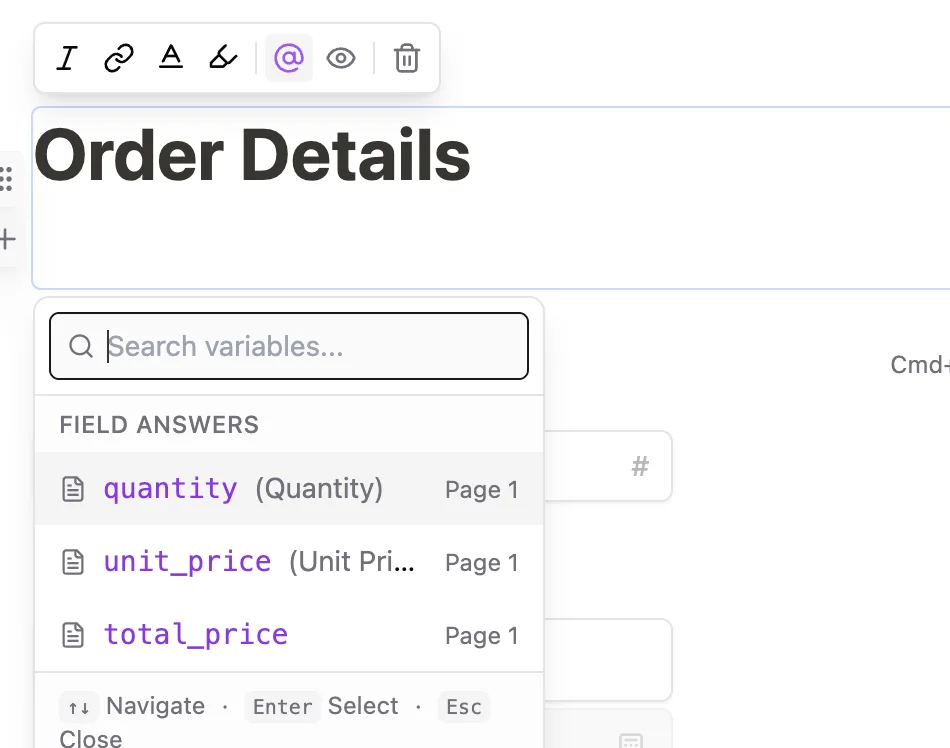
- Type or click @ to open the variable menu.
- Choose the earlier field from the menu. Makeform inserts it as a variable such as
{{first_name}}. - Preview the form and complete the earlier field to confirm the copy updates.
Pipe answers into question titles
Place your cursor in a question title, click the @ control, then choose the field answer you want to reuse.
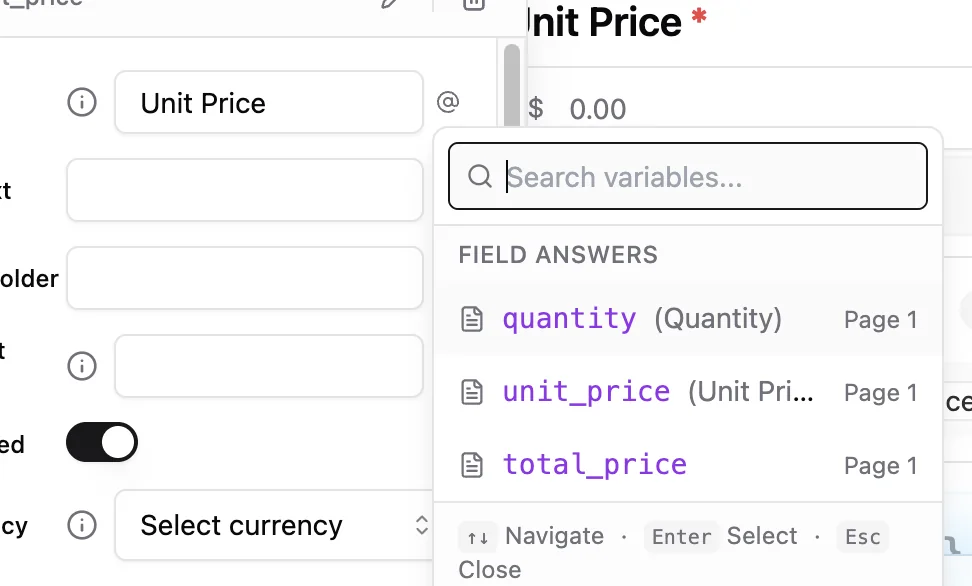
In the example above, the quantity answer can be inserted into the next question title so the respondent sees a title like 12 Unit Price.
Respondent experience
The respondent sees the final copy with their answer inserted. They do not need to know that a variable was used.
Good places to use answer piping
| Place | Example |
|---|---|
| Question title | Thanks {{first_name}}, what do you want to build? |
| Description | We will send the checklist to {{email}}. |
| Text block | Your selected plan is {{plan}}. |
| Ending page | Thanks {{first_name}}, your request was received. |
Best practices
- Reference fields that appear earlier in the form.
- Use short field names so they are easy to find in the @ menu.
- Add fallback-friendly copy. For example, avoid sentences that break if an answer is blank.
- Test every path if the piped value appears after conditional logic.
- Keep personalization helpful, not gimmicky.
Testing checklist
- Fill the source field in preview mode.
- Confirm the later question shows the inserted answer.
- Test what happens if the source answer is empty.
- Submit a test response and confirm the original answer is still saved.
Troubleshooting
The @ menu does not show the field
Make sure the source field is already created and has a clear label or field name.
The inserted answer is blank
The respondent may not have answered the source field, or the piped field may appear before the source field in the form.
The copy sounds awkward
Rewrite the sentence so it still reads naturally with short, long, or unexpected answers.