Link Preview
Customize how your form link appears when it is shared in social posts, messaging apps, search results, and internal tools.
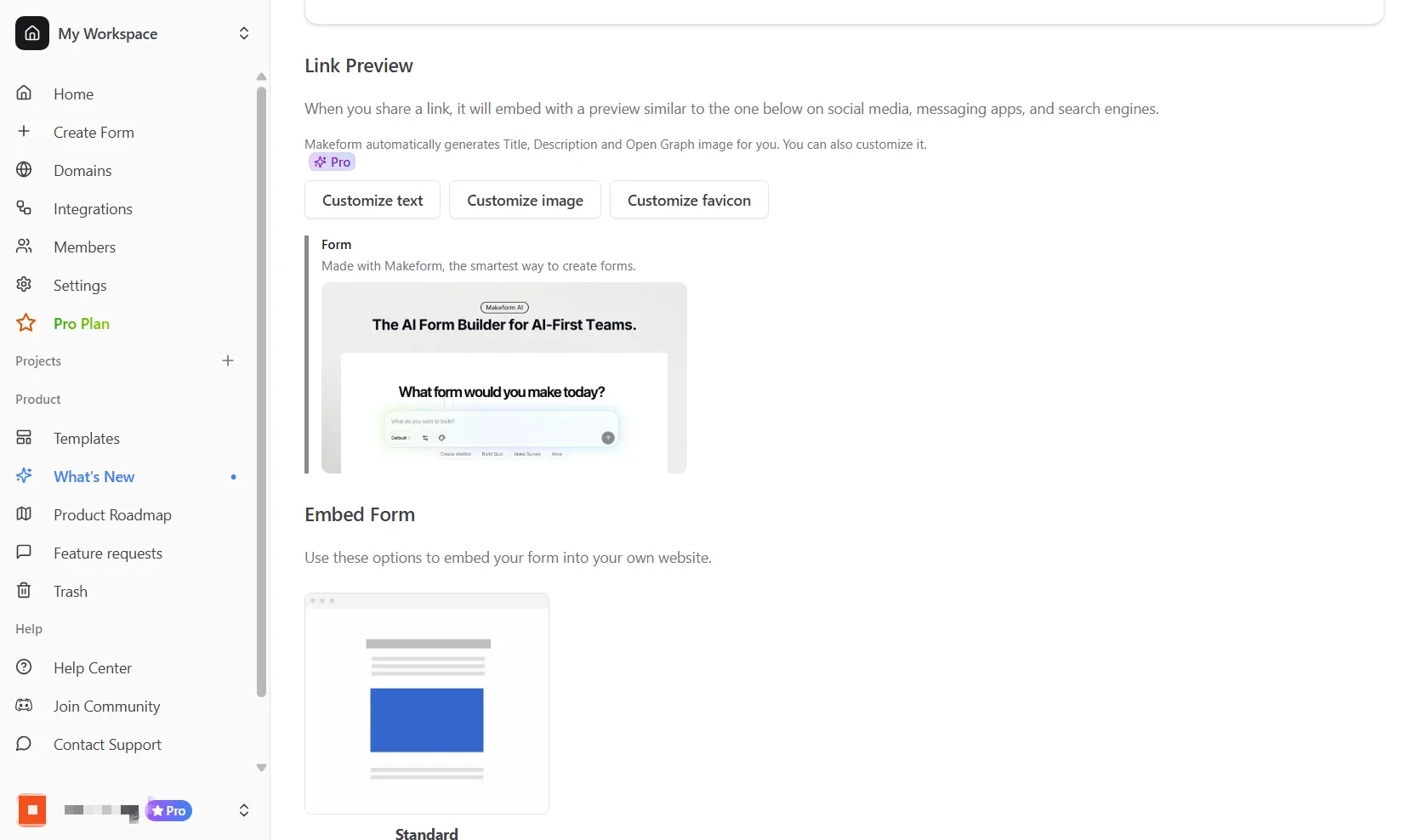
Link preview customization is a Makeform Pro feature.
What a link preview controls
A link preview is the card that platforms generate from your form URL. Makeform can provide the metadata those platforms read:
| Preview field | Where it appears |
|---|---|
| Site name | The small source label in preview cards |
| Favicon | Browser tabs, bookmarks, and some preview cards |
| Title | Browser tabs, search results, and social preview cards |
| Description | The supporting text below the title |
| Open Graph image | The large image shown in most social and messaging previews |
Customize your link preview
- Open the form you want to share.
- Go to the Share page.
- Find the Link Preview or Link Settings section.
- Click Customize text, Customize image, or Customize favicon.
- Save the updated preview settings.
Customize text
Use the text dialog to set the site name, preview title, and preview description.
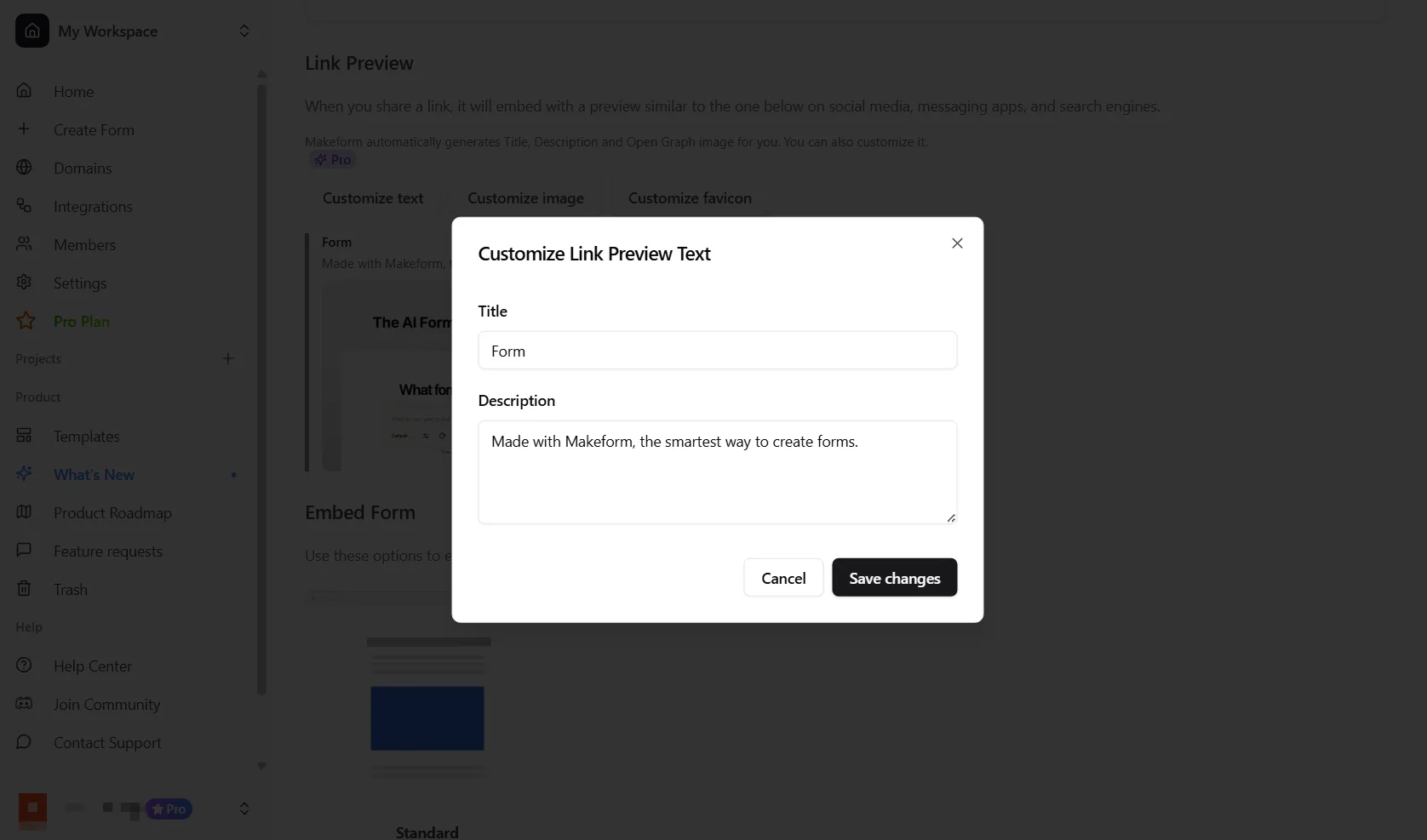
Good preview text should be specific. Instead of a generic title like Form, use a title such as Vendor onboarding form, Customer feedback survey, or Event registration.
Customize the Open Graph image
Upload an image that gives respondents context before they open the form.
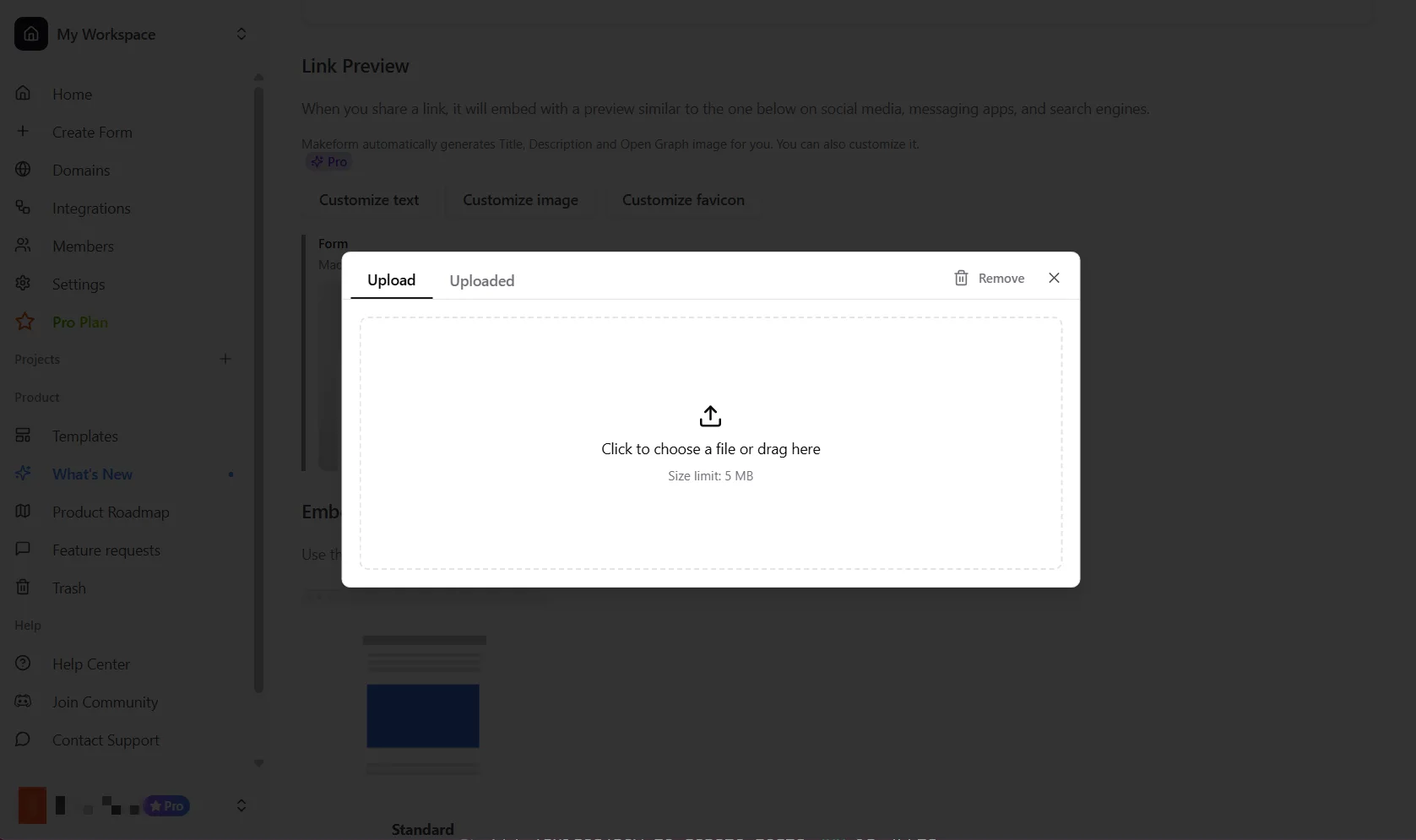
Recommended image guidelines:
- Use a 1200 x 630 image when possible.
- Keep important text centered so platforms do not crop it.
- Use JPG, PNG, or WebP.
- Avoid tiny screenshots or dense UI that becomes unreadable in small cards.
Customize the favicon
Upload a favicon when you want the browser tab and preview source to feel branded.

Use a square icon with simple shapes. Makeform resizes uploaded favicon images for browser use.
Platform behavior
Different platforms cache previews differently. Slack, Discord, iMessage, LinkedIn, Facebook, Google, and X may not refresh immediately after you save changes.
If a platform still shows the old preview, wait for its cache to refresh or use that platform’s preview/debug tool to request a new scrape.
Testing checklist
- Confirm the title is specific and not just
Form. - Confirm the description explains what the respondent is opening.
- Confirm the Open Graph image is readable at small sizes.
- Paste the form link into Slack, iMessage, or another private channel to preview it.
- Re-test after changing the favicon or preview image, because those are often cached.